

Ergonomic Mouse: Stay Aligned, Reduce Strain, Work Smarter

The client call wraps up, and you catch yourself pressing harder on the mouse as your wrist starts to burn. You shake your hand, flex your fingers, and hope it passes. An ergonomic mouse can change this moment, less reaching, less twisting, more calm control. In a few small moves, plus the right device, you can protect your hands and keep your focus where it belongs: on the work. The right setup also takes pressure off the ulnar nerve, the issue behind ulnar nerve entrapment for many desk workers.
What An Ergonomic Mouse Does (And Why It Matters)

An ergonomic mouse supports a neutral wrist and forearm so you move with less strain and more precision. It reduces the twist (pronation) and bend (ulnar deviation) that standard mice often force, and it trims the micro-effort you spend all day chasing the cursor.
Common Pain Points It Addresses
If you've felt a dull ache at the base of your thumb or a sharp twinge on the outer wrist after a deadline push, you're not alone. Common issues include:
- Wrist pronation and extension that stress tendons and the carpal tunnel.
- Ulnar deviation from wide reaches to the right of the keyboard, a frequent contributor to computer-related elbow and ulnar nerve pain.
- Forearm and shoulder tension from constant gripping and micro-movements.
An ergonomic mouse counters these patterns by aligning the wrist, sharing the workload with larger muscles, and reducing reach.
Choose The Right Type For Your Work
.avif)
Match the device to your tasks and posture. Your ideal ergonomic mouse depends on how you point, click, and scroll during real projects, editing timelines, reviewing code, reconciling accounts, or sketching wireframes.
Vertical Mice: Neutral Forearm, Less Twist
A vertical ergonomic mouse positions your hand in a handshake posture. Less pronation means calmer forearms, especially during long selection drags and tab-to-tab triage. If your pain spikes on heavy mouse days, start here.
Centered Mice And Touchpads: No Reach, Symmetric Control
Centered mice bring the pointer to the midline. You stay close to the keyboard, so shoulders stay level and elbows rest by your sides. Contour Devices pioneered this flow with the RollerMouse family and the SliderMouse Pro, fast cursor control, no reach, symmetric access for both hands.
Trackballs And Joysticks: Minimal Movement, Precise Input
Trackballs and joystick-style devices reduce arm travel to near zero, which can help when desk space is tight or when tendons need a break. They shine for precise node edits, color grading, and long-form navigation, anywhere you want micro-control with minimal motion.
Find Your Fit: Hand Size, Grip, And Adjustability
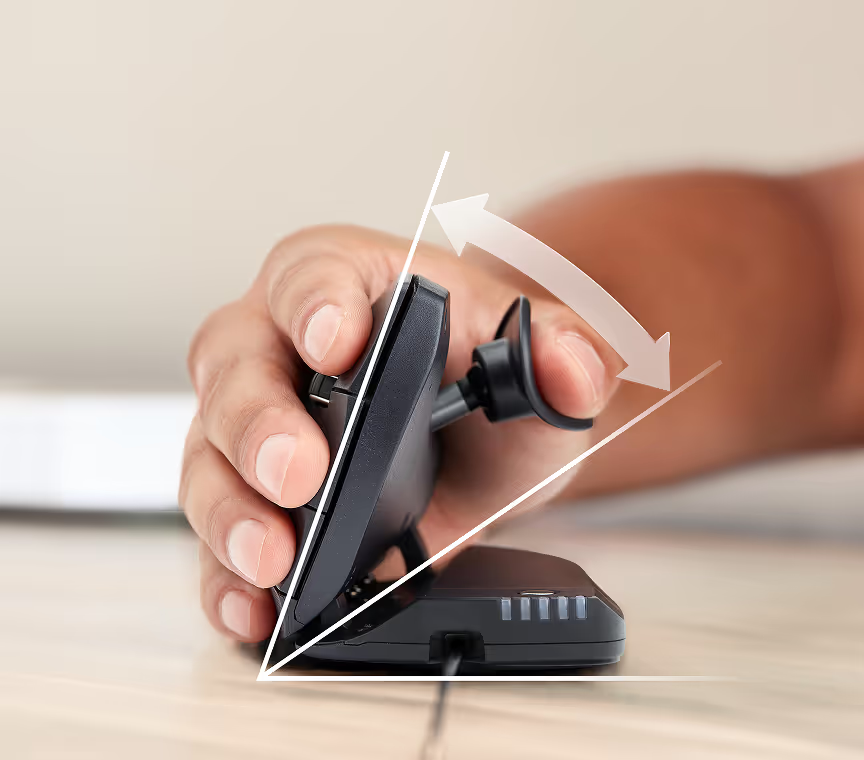
Fit comes first. The right ergonomic mouse should feel natural within minutes, not after a week of "getting used to it."
Sizing And Palm Support
Pick a size that fills your palm without forcing a stretch. If you use a palm grip, look for a higher back and generous palm support. Claw or fingertip users often prefer a slimmer shape with easy button access. A well-fitted ergonomic mouse spreads pressure across the palm and keeps the wrist quiet.
Tilt, Angle, And DPI/Sensitivity
A modest tilt eases wrist extension. Adjustable-angle devices like UniMouse let you tune the slant to your forearm, which can be a lifesaver if you switch between tasks. Set DPI so the pointer moves where you expect with small, relaxed motions, higher DPI for multi-monitor sweeps, lower for pixel-perfect edits. The goal: minimal movement, maximum control.
Buttons And Shortcuts That Reduce Reach
Program side buttons for daily actions, copy/paste, back/forward, mission control, or your DAW's most-used command. Each shortcut saves a reach to the keyboard and a twist at the wrist. Over a day, those small wins add up to real relief with an ergonomic mouse.
Set Up For Neutral Alignment
.avif)
The best ergonomic mouse still needs a smart desk setup. Lead with alignment: keep shoulders relaxed, elbows near your sides, and wrists straight.
Positioning Relative To Your Keyboard
Place the device as close as possible to the home row. With a centered solution, it sits right under the space bar. With a right-hand device, tuck it tight to the keyboard edge to avoid a wide reach. Keep mouse and keyboard at the same height.
Desk Height, Arm Support, And Chair Alignment
Set desk height so forearms rest parallel to the floor. Your chair should support your mid-back with feet flat and hips open. If your shoulders creep up during intense work, add soft arm support or bring the mouse inward another centimeter. Small moves pay off.
Sit-Stand And Laptop/Compact Setups
In sit-stand modes, keep the screen top near eye level and the ergonomic mouse close to centerline. On laptops, use a stand and a compact keyboard, then park your mouse right in front of you. Centered devices shine in tight footprints, no awkward reach, no extra effort.
Work Habits That Keep You Comfortable

Tools help. Habits lock the gains. Pair your ergonomic mouse with brief resets and smarter input choices.
Microbreaks, Stretches, And Load Management
Every 30–45 minutes, pause for 20–40 seconds. Unclench your hand, roll your shoulders, extend your fingers, and breathe. If a sprint week stacks long hours, schedule extra microbreaks. Recovery is part of the work.
Switching Modalities And Smart Shortcuts
Alternate hands or switch between an ergonomic mouse and a centered device for repetitive tasks. Map shortcuts to reduce keystrokes and travel. Less movement, less strain, more all-day comfort.
Early Care For Irritation (And When To Seek Help)
If tingling or sharp pain appears, don't push through it. Scale back load, adjust angle, and test a different device style. Most mild cases settle with early care. If symptoms persist or night pain wakes you, talk with a clinician. Guidance first, heroics never.
Buying Considerations For Individuals And Teams
A good ergonomic mouse pays you back in fewer flare-ups and steadier focus. For teams, it also supports compliance and fewer time-loss injuries.
Compatibility, IT Rollout, And Support
Confirm OS support, driver needs, and security policies. At scale, preconfigure buttons and DPI profiles so users land on a comfortable default. Simple setup prevents "set it and forget it" pain later.
Durability, Repairability, And Sustainability
Choose devices that last, with replaceable parts and responsible materials. Longer life is better for you and the planet. Fewer swaps, fewer disruptions, less waste.
Trials, Training, And Procurement Policy
Pilot with a few users across roles, engineers, designers, editors. Offer a short training: fit, posture, shortcuts, and microbreaks. Bake ergonomic mouse standards into procurement so new hires start aligned from day one.
Conclusion
Picture your next heavy day: three reviews, two standups, one late-night build. With a well-fitted ergonomic mouse and a centered setup, your shoulders stay level and your wrists stay calm. You move less, control more, and finish with gas left in the tank.
WHERE CONTOUR FITS. Contour Devices. Work miracles. Start with the RollerMouse if you want centered, ambidextrous control and minimal reach, try the RollerMouse Red for smooth, precise gliding with clean Scandinavian lines. Prefer a traditional form with adjustable angles? The UniMouse lets you dial in tilt and thumb support to match your hand. If you like a touchpad-like feel without losing precision, the SliderMouse Pro brings fluid, midline control. Pair any of these with the compact Balance Keyboard to keep everything in your neutral zone.
A few closing notes for the evidence-minded: see "Computer Workstations eTool," OSHA, 2023: "Musculoskeletal Health Program," NIOSH/CDC, 2023: and "Carpal Tunnel Syndrome," Mayo Clinic, 2024, for accessible summaries on posture, device choice, and symptom care. The promise holds across roles and geographies, the right ergonomic mouse, a tidy layout, and simple habits can help you say goodbye to feeling strained and sore, and keep your career healthy.
Key Takeaways
- An ergonomic mouse keeps your wrist and forearm neutral, reducing pronation and ulnar deviation so you work with less strain and steady precision.
- Research shows vertical or angled designs can cut forearm muscle load by ~14% and ulnar deviation by ~13% without sacrificing accuracy.
- Match the device to your tasks: choose vertical for less twist, centered mice (e.g., RollerMouse/SliderMouse) to eliminate reach, and trackballs/joysticks for precise control in tight spaces.
- Prioritize fit and settings for your ergonomic mouse—size it to your hand, adjust tilt/angle, set DPI for minimal movement, and program side buttons to replace frequent reaches.
- Optimize desk setup by keeping the mouse close to the keyboard at the same height, shoulders relaxed, elbows at your sides, and the pointer device near midline for sit-stand and laptop use.
- Lock in comfort with habits and rollout: take 20–40 second microbreaks every 30–45 minutes, alternate hands or devices, address pain early, and for teams preconfigure profiles, pilot across roles, and buy durable, repairable gear.
Ergonomic Mouse: Frequently Asked Questions
What is an ergonomic mouse and how does it reduce wrist strain?
An ergonomic mouse supports a neutral wrist and forearm, reducing pronation and ulnar deviation that standard mice often cause. By aligning the wrist and sharing load with larger muscles, it cuts micro-movements and grip force. Lab comparisons show reduced forearm muscle activity without sacrificing accuracy for most users.
Which type of ergonomic mouse should I choose: vertical, centered, or trackball?
Match the device to your tasks and posture. Vertical mice lower forearm twist during long drags. Centered mice keep shoulders level and reduce reach, great for keyboard-heavy work. Trackballs or joystick styles minimize arm travel and excel at precise edits in tight spaces or during tendon recovery phases.
How should I position an ergonomic mouse relative to my keyboard for neutral alignment?
Keep shoulders relaxed, elbows near your sides, and wrists straight. Place the mouse as close as possible to the home row; with centered devices, keep it under the space bar. Align mouse and keyboard heights, and adjust desk and chair so forearms are roughly parallel to the floor.
What DPI or sensitivity settings work best for an ergonomic mouse?
Set sensitivity so the pointer reaches targets with small, relaxed motions. Use higher DPI for multi-monitor sweeps and lower DPI for pixel-level edits. Aim for minimal movement with precise control. If you feel tension, lower grip force and fine-tune DPI rather than pushing the wrist harder.
Can an ergonomic mouse help with carpal tunnel or wrist tendon pain?
It can reduce aggravating postures and loads that contribute to symptoms, often easing discomfort when combined with better desk setup and microbreaks. However, it’s not a medical treatment. If tingling, numbness, or night pain persists, consult a clinician for diagnosis and a tailored care plan.
How long does it take to adapt to a new ergonomic mouse, and what if pain continues?
Most people feel natural within minutes to a few days, especially with correct sizing and angle. If discomfort continues, tweak tilt, DPI, and button mapping, or trial a different style (e.g., centered or trackball). Persistent or worsening symptoms warrant reducing load and seeking professional guidance.
