

7–8 Best Mouse Options For Cubital Tunnel Syndrome (With Setup Tips)

Your day starts with a ping, a deadline, and a twinge on the inside of your elbow. If you're hunting for the right mouse for cubital tunnel syndrome, you want relief without slowing down. Picture your hands centered, elbows slightly open, shoulders relaxed, cursor gliding exactly where you want it. That's the goal, practical setup, smarter movement, and ergonomic devices from Contour Design® that help you stay aligned, comfortable, and productive.
1. Go Centered: Roller-Style Mouse To Eliminate Reach And Keep Elbows Open

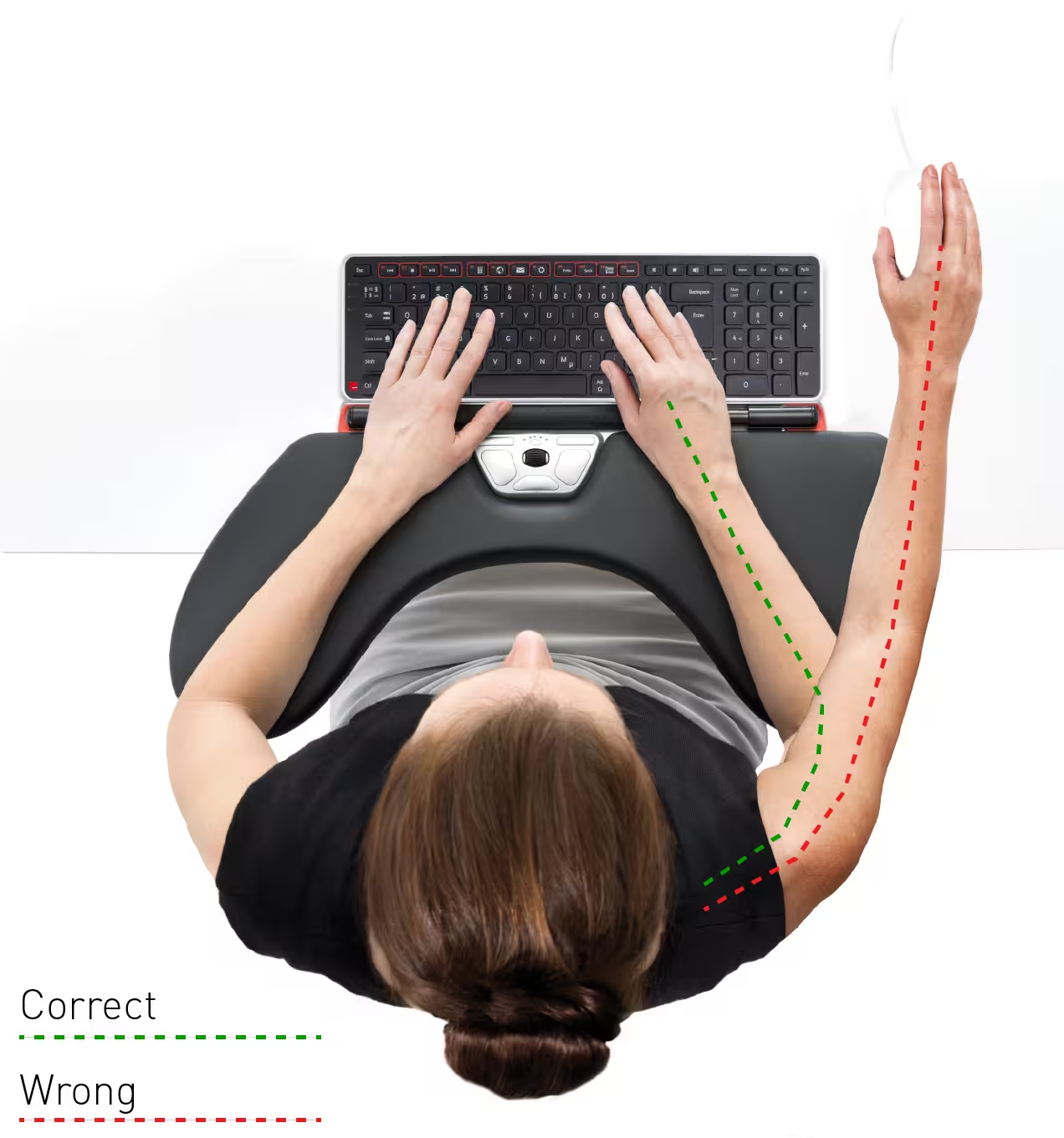
Centered pointing keeps your arms close to your torso, which helps reduce elbow flexion that aggravates the ulnar nerve. For many, a roller‑style mouse for cubital tunnel syndrome is the fastest way to cut reach, shrug off shoulder tension, and keep the elbows open. This approach is often combined with gentle movement and alignment strategies similar to those outlined in cubital tunnel syndrome exercises to reduce ulnar nerve irritation and stay comfortable at your desk
Why Centered Control Helps The Ulnar Nerve
When you stop reaching to the side, you lower shoulder abduction and ease the urge to tuck the elbows tight. Less flexion, less pressure at the ulnar groove. It feels subtle, then your forearms stop burning by mid‑afternoon.
Key Features To Look For
Look for a central roller bar, low‑force clicks, integrated palm support, and a short, natural reach. Contour's RollerMouse line places pointing, clicking, and scrolling right in front of you, no gripping, no twisting, just smooth, linear control.
Quick Setup Tips For Height, Tilt, And Wrist Rest
Set desk and chair so shoulders relax, elbows sit around 90–100°, and wrists stay neutral. Use the built‑in wrist rest or add a soft one so you don't plant the medial elbow on the desk edge. Pair with a compact keyboard to hold the cursor in your midline.
2. Choose A Fully Adjustable Vertical Mouse To Reduce Pronation And Pinch
.avif)
A vertical mouse for cubital tunnel syndrome can ease forearm twist and reduce pinch grip, which many users find soothing. It's not a cure, but it often improves comfort and control through the day without compromising your productivity.
Adjustable Tilt Range (E.g., 35°–70°) For Your Neutral Angle
Bodies vary. You'll feel best when the shell matches your natural forearm angle, not fully handshake, not flat. Pick a device with an adjustable tilt (roughly 35–70°) so you can test and dial in your sweet spot as symptoms change.
Grip, Size, And Low-Force
Choose a size that fills your palm without a pinch. Prioritize light‑tactile buttons and a smooth scroll to spare finger flexors. Contour's UniMouse offers adjustable angle and thumb support, letting you fine‑tune posture as tasks shift.
3. Prioritize Short Reach: Keep The Pointer Inline With A Compact, Low-Profile Layout

Short reach is the hidden win. Keep your pointer device directly in front of your shoulder to protect the elbow and shoulder. This single change can make any cubital tunnel syndrome mouse feel better.
Pairing Keyboard And Mouse For Minimal Lateral Reach
Use a compact board that trims the number pad so the pointer sits closer to center. The Balance Keyboard keeps a low profile and pairs cleanly with roller‑style devices to reduce unwanted reach.
Desk Depth, Armrest Position, And Cable Management
Give your forearms room to rest on the desk. Align chair armrests with desk height so your elbows don't hover in deep flexion. Tidy cables and clear peripherals so you can sit closer, no edge digging into the inside of your elbow.
4. Opt For Low-Force Clicking And Scrolling To Protect Irritated Tissues

Low‑force inputs matter. Every heavy click or ratchety scroll adds load in the forearm, which can ramp up nerve irritation. A mouse for cubital tunnel syndrome should feel light, precise, and quiet.
Switch Types, Click Force, And Silent Mechanisms
Favor light‑tactile or silent switches and a smooth, low‑resistance scroll. If you test in person, notice whether your fingers tense before each click, that's a sign the mechanism is too stiff.
Software Shortcuts: Remap Common Actions To Reduce Repetition
Map double‑click, drag, and middle‑click to easy buttons or keyboard shortcuts. Many Contour devices support driver profiles, so you can offload heavy actions to your thumbs or keys and cut hundreds of high‑force clicks daily.
5. Alternate Input To Share The Load
.avif)
Rotation prevents overload. Switching between a centered device and a vertical mouse for cubital tunnel syndrome gives your tissues a chance to recover while you keep moving.
Rotation Strategy: When To Switch And For Which Tasks
Use your centered RollerMouse for long navigation, reading, and spreadsheets, low reach, low force. Swap to UniMouse for short precision tasks or bursts of editing. Add a stylus or trackball when you notice rising tension: five minutes can reset the system.
Precision Vs. Comfort Trade-Offs To Consider
Absolute pixel‑perfect work may feel best with a mouse or stylus. Marathon browsing or email blocks? A roller‑bar keeps you relaxed and fast. The mix changes by project, listen to your elbows and rotate before discomfort spikes.
6. Add Palm And Forearm Support To Offload Pressure At The Ulnar Groove
Support helps you stop leaning on the inside of the elbow. A cubital tunnel syndrome mouse plus the right palm support keeps wrists neutral and elbows slightly open.
Palm Support Sizing And Materials (Vegan Leather, Gel, Or Foam)
Pick a palm support that meets your hand size so your wrist floats neutral, not bent. Soft vegan leather, gel, or foam spreads pressure without collapsing, and pairs well with Contour's clean, low‑profile housings. If you are looking for a wrist rest that can provide you with all-day comfort and goes perfectly with Contour Devices, here you can find Contour Universal Arm Support.

Avoid Hard Desk Edges: Aim For A Neutral Wrist And Open Elbow
Pad sharp desk edges, slide closer to the work, and keep the elbow angle around 90–110°. If your elbow sinks into a hard surface, add a sleeve or cushion. Small fixes compound into fewer flare‑ups.
7. Dial In Workstyle: Micro‑Breaks, Position Changes, And Early Care
Smart habits protect nerves. The right mouse for cubital tunnel syndrome works best when you pair it with short breaks and gentle movement.
Break Timers, Standing Intervals, And Gentle Range‑Of‑Motion
Set a 10–15‑minute timer for 20–60‑second micro‑breaks. During breaks, open and close your hand, extend your fingers, gently straighten and bend your elbow, roll your shoulders. Stand for a few minutes each hour if your setup allows. Here is more reading material for you to follow a quick guide to cubital tunnel syndrome exercises to reduce ulnar nerve irritation and stay comfortable at your desk
When To See A Clinician (Numbness In Ring/Pinky, Night Pain)
If you notice numbness or tingling in the ring and little fingers, night pain that wakes you, or hand weakness, book a clinician, ideally a hand therapist or hand surgeon. Early care often prevents bigger problems and helps you keep working comfortably.
8. Smart Buying For Teams: Trial Programs, Refurbished Options, And Sustainability
Try before you buy. Comfort is personal, and the best cubital tunnel syndrome mouse for one role may differ for another. Pilot centered and vertical setups with real tasks before rolling them out.
Fleet Deployment: Consistency, Training, And Policy
Create a simple policy: compact keyboards, short reach, micro‑breaks, early symptom reporting, and quick access to alternate devices. Share 5‑minute setup guides and a video walkthrough so everyone dials in the same healthy baseline.
Refurbished Ergonomic Gear: Lower Impact, Lower Cost
Look for refurbished Contour devices to stretch budgets and reduce waste without giving up key features. Durable shells, replaceable parts, and long lifespans make this an easy sustainability win for IT and procurement.
Conclusion
Here's the through line: keep the pointer centered, minimize reach, and choose light, adjustable gear. For many, a RollerMouse as the primary mouse for cubital tunnel syndrome plus a UniMouse for targeted tasks delivers the best blend of relief and control. Add the Balance Keyboard to hold everything in your midline, pad those desk edges, and build micro‑breaks into your day.
Contour Design. Work miracles. Our devices are shaped for comfort, with clean lines and long‑lasting materials that support healthier, more productive work. If you're ready to test your fit, explore RollerMouse, UniMouse, and Balance Keyboard. Choose the layout that feels easiest on your elbows, then lock in your setup for the week ahead.
Clinical ergonomics for cubital tunnel syndrome centers on less elbow flexion, less pressure, and lower force. For accessible overviews, see OrthoInfo, Cubital Tunnel Syndrome (AAOS, reviewed 2024), OSHA, Computer Workstations eTool (accessed 2025), and EU‑OSHA, Workplace MSDs guidance (2023). A thoughtful device plus a thoughtful setup helps you feel better now and keep your career healthy.
Key Takeaways
- Center the pointer with a roller-style device to cut reach, keep elbows open, and quickly reduce ulnar nerve irritation.
- Use a fully adjustable vertical mouse (about 35–70°) with low-force buttons to match your neutral forearm angle and ease pronation and pinch.
- Prioritize short reach with a compact keyboard and inline positioning, and set desk and armrest heights to avoid sustained elbow flexion.
- Choose a mouse for cubital tunnel syndrome with light, quiet clicks and remap heavy actions to easy buttons to reduce repetitive load.
- Rotate input—roller bar for long navigation, vertical mouse or stylus for precision—and switch before discomfort spikes to share the workload.
- Add palm and forearm support, take 20–60‑second micro-breaks every 10–15 minutes, and seek care if ring/pinky numbness or night pain appears.
Frequently Asked Questions
What is the best mouse for cubital tunnel syndrome?
A centered, roller-style mouse for cubital tunnel syndrome often provides the quickest relief by eliminating lateral reach and reducing elbow flexion that pressures the ulnar nerve. Look for a central roller bar, low‑force clicks, integrated palm support, and a compact keyboard to keep the pointer in your midline with elbows slightly open.
How does a vertical mouse help cubital tunnel syndrome?
A vertical mouse reduces forearm pronation and pinch grip, which can calm irritated tissues. Choose an adjustable tilt (about 35–70°) so you can match your natural forearm angle, and prioritize low‑force buttons and the right size to fill your palm without pinching for smoother, less fatiguing control.
How should I set up my desk and mouse for cubital tunnel syndrome?
Keep the pointer inline with your shoulder to minimize reach. Set chair and desk so shoulders relax and elbows sit around 90–100°. Use palm/forearm support, pad sharp desk edges, and remap heavy actions (double‑click, drag) to easy buttons or keys. Take 20–60‑second micro‑breaks every 10–15 minutes.
Is a trackball or touchpad better if I have cubital tunnel syndrome?
Both can help when rotated with your main device. Trackballs minimize shoulder movement but may load the fingers; touchpads can be low‑force but sometimes increase pinch or wrist extension. For long navigation, a centered device is often most relaxing; use a trackball or stylus for short precision bursts.
What pointer speed or DPI settings reduce elbow strain with a mouse for cubital tunnel syndrome?
Increase pointer speed (or DPI) so small hand motions move the cursor farther, reducing arm travel and elbow flexion. Combine with a larger on‑screen pointer and moderate acceleration for control. Aim for smooth, light movements; if accuracy suffers, slightly lower speed and take brief adjustment breaks.
